> ## Documentation Index
> Fetch the complete documentation index at: https://www.helius.dev/docs/llms.txt
> Use this file to discover all available pages before exploring further.
# Solana Dedicated Nodes Setup: Complete Getting Started Guide
> Complete guide to setting up your Solana dedicated node with gRPC streaming, Yellowstone plugin, and optimal configuration for blockchain data.
## How to Order Dedicated Nodes
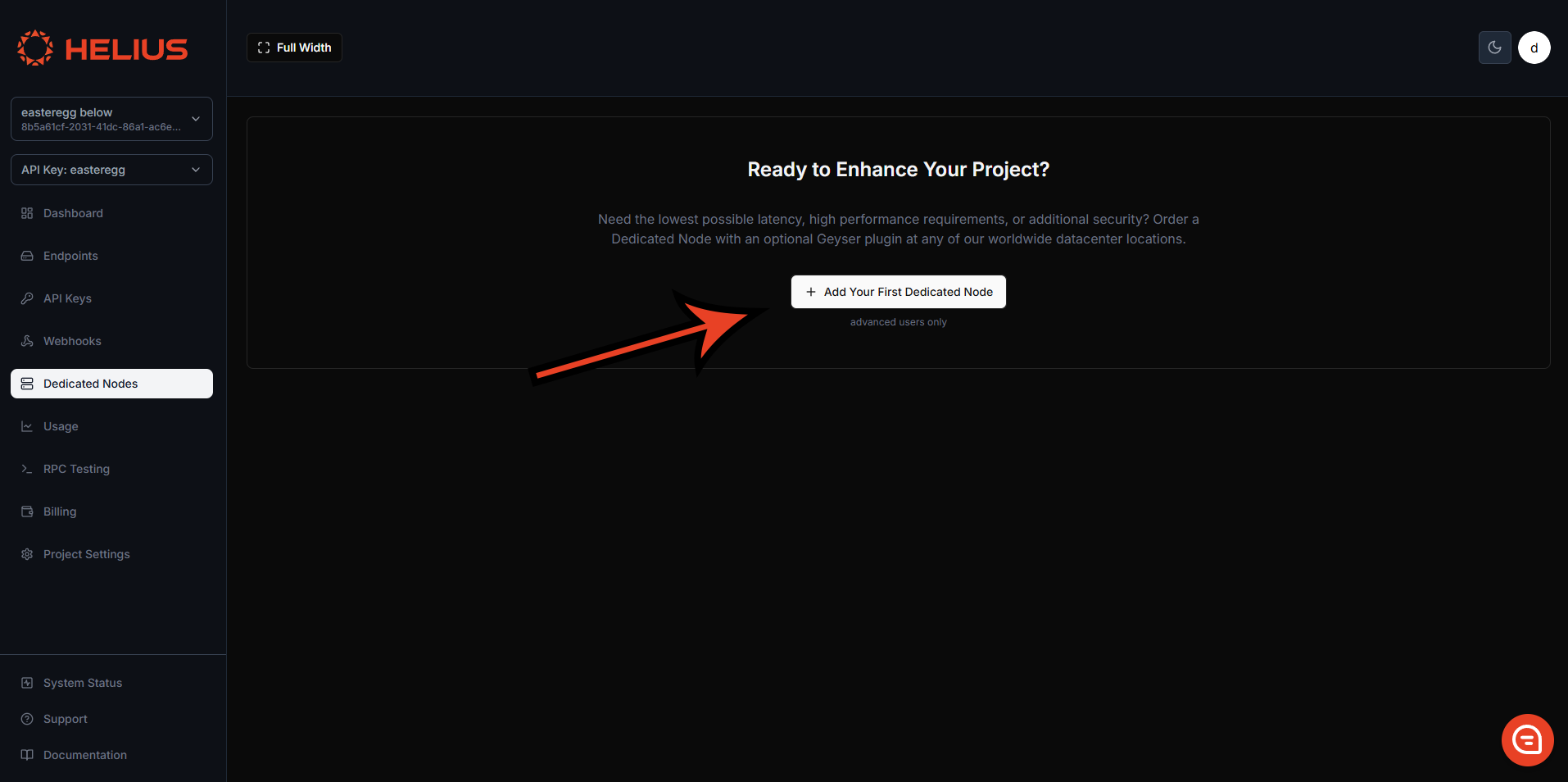
Dedicated Nodes can be ordered directly from the [developer portal](https://dashboard.helius.dev/dedicated-nodes) on the Dedicated Nodes tab.
### Node Type
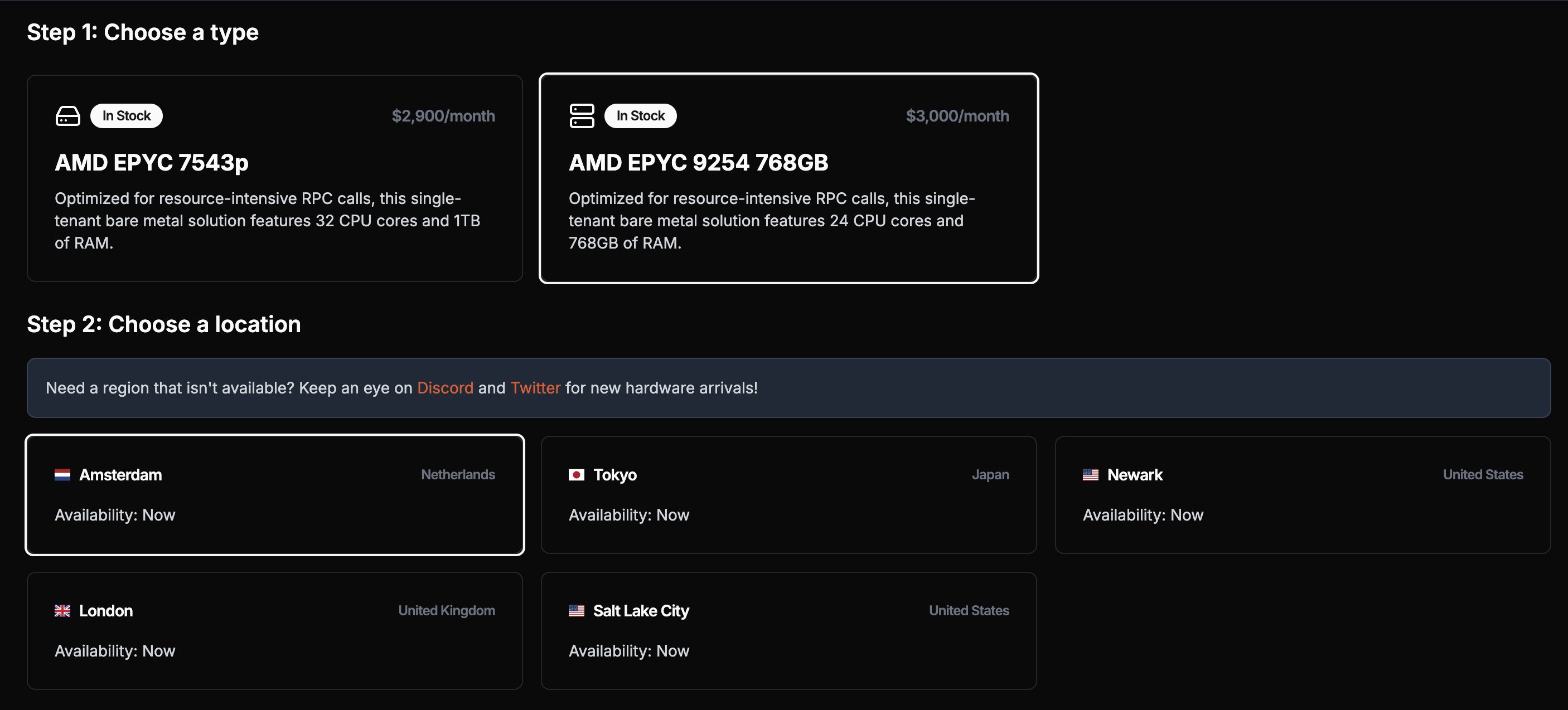
The type of node you choose depends on your requirements. Since we don't impose any rate limits, your node's performance will rely entirely on its specifications.
**For gRPC streaming applications** (primary use case), any node type will perform well.
**Important**: While [`getProgramAccounts`](/api-reference/rpc/http/getprogramaccounts) is supported, dedicated nodes are not optimized for these calls. Heavy usage can impact node performance or even cause node failure. Use your shared plan for `getProgramAccounts` queries as it has a custom indexer that makes these calls much faster and more reliable.
### Node Location
We offer nodes across multiple regions: in North America (Pittsburgh, Newark, Salt Lake City, Los Angeles, Vancouver); in Europe (Dublin, London, Amsterdam, Frankfurt); and in Asia (Tokyo, Singapore) to ensure the best geographic coverage with the global Solana infrastructure.
For optimal latency, choose a node closest to your server. Your node will be deployed within three hours of payment.
### Node Client
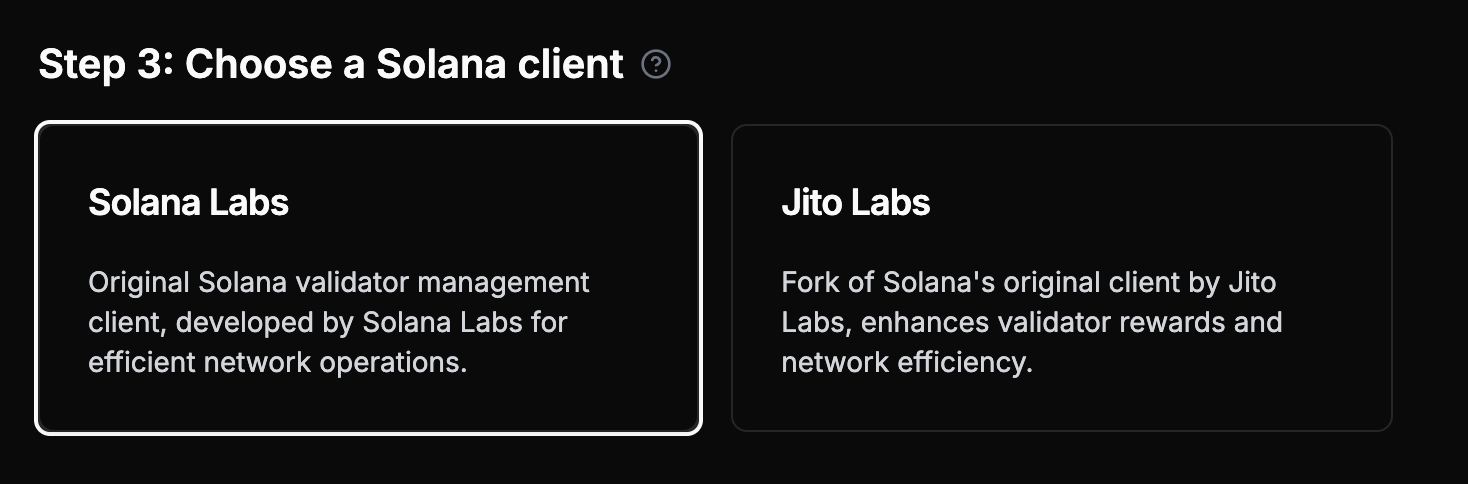
You can customize your node by selecting the client type — either Agave or Jito Labs (fork of Agave with an additional method `simulateBundle`)
Dedicated nodes **cannot** send Jito Bundles on their own. To send Jito Bundles, you must use the Jito API, which handles packaging and sending the bundles through Jito's system.
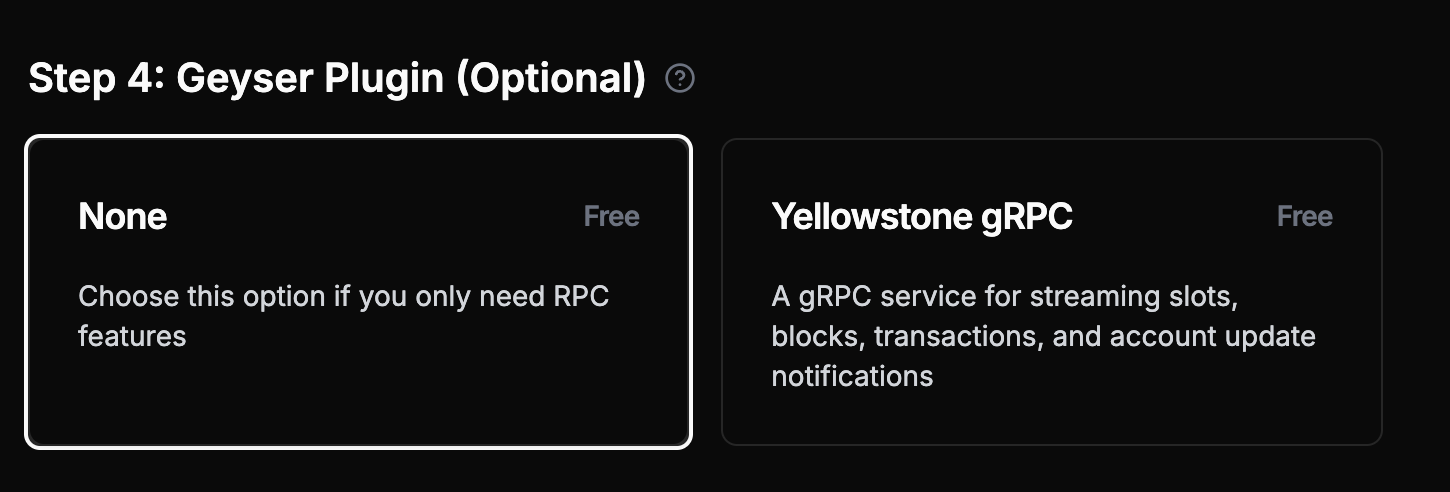
### Geyser Plugin (Recommended)
**We strongly recommend adding the [Yellowstone](https://github.com/helius-labs/yellowstone-grpc) Geyser Plugin**, which is the primary use case for dedicated nodes. It provides high-performance [gRPC streaming](/grpc) of slots, blocks, transactions, and account updates.
**Best Practice**: Dedicated nodes are optimized for gRPC streaming. Use your shared plan for transaction submission, archival queries, and complex RPC operations.
### Payment Options
You can pay via fiat or crypto (USDC). Once your payment goes through, your node will be deployed within 3 hours.
For billing, fiat payments will receive a discount on the next month's bill for the number of days it took to provision the node. For crypto payments, the billing cycle starts once the node is delivered.
### Demo
## Getting Started
Once you have your Dedicated Node set up and ready (status: **Succeeded**), you can start working with it.
## Connecting to your dedicated node
### gRPC Streaming (Primary Use Case)
**Dedicated nodes are optimized for gRPC streaming via the Yellowstone Geyser Plugin.** This is the primary and recommended way to use your dedicated node.
**Consider LaserStream for gRPC Streaming**: LaserStream offers superior performance, reliability, and advanced features like 24-hour historical replay for gRPC streaming. It's recommended for 99% of streaming use cases. [Compare LaserStream vs Dedicated Nodes](/laserstream/laserstream-vs-dedicated-nodes) to evaluate the best solution for your needs, or [get started with LaserStream](https://dashboard.helius.dev/laserstream) from your Helius Dashboard.
### Basic RPC and Websocket (Limited Functionality)
Each dedicated node also provides basic RPC functionality, but with limitations. **For production applications, combine dedicated nodes with a shared plan.**
Here we are using Solana web3.js to call [`getSlot`](/api-reference/rpc/http/getslot) using our dedicated node:
```javascript theme={"system"}
// Using @solana/web3.js
const { Connection } = require('@solana/web3.js');
const connection = new Connection('https://liveried-grazings-gxzjabdgqa-dedicated.helius-rpc.com?api-key=465964ff-f718-47d2-a51c-66ddcce332d7');
// Get the current slot
const getSlot = async () => {
const slot = await connection.getSlot();
console.log('Current slot:', slot);
};
getSlot();
```
This is how you would set up a native websocket connection to stream new slots:
```javascript theme={"system"}
const Websocket = require('ws');
const ws = new Websocket('wss://liveried-grazings-gxzjabdgqa-dedicated.helius-rpc.com?api-key=465964ff-f718-47d2-a51c-66ddcce332d7 ');
ws.onopen = () => {
ws.send(JSON.stringify({
jsonrpc: '2.0',
id: 1,
method: 'slotSubscribe'
}));
};
ws.onmessage = (event) => {
console.log(JSON.parse(event.data));
};
```
**Remember**: The above RPC examples are for basic functionality only. Dedicated nodes limitations:
* [`sendTransaction`](/api-reference/rpc/http/sendtransaction) supported but not optimized - most transactions will not land (use your shared plan for reliable transaction submission)
* No archival data queries (use your shared plan)
* [`getProgramAccounts`](/api-reference/rpc/http/getprogramaccounts) supported but not optimized - heavy usage can impact performance or cause node failure (use your shared plan for reliability)
**Primary use case**: Use the gRPC streaming setup below for optimal performance.
### Set up your Geyser Plugin
To begin using the Geyser plugin you need to clone the Yellowstone repo:
```shell theme={"system"}
git clone https://github.com/helius-labs/yellowstone-grpc.git
```
#### Using the CLI
```sh theme={"system"}
cd yellowstone-grpc/examples/rust/
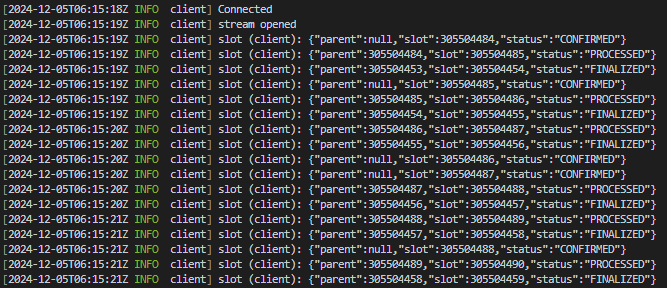
cargo run --bin client -- -e "https://liveried-grazings-gxzjabdgqa-dedicated-lb.helius-rpc.com:2053" --x-token 42f03938-1daa-4162-a457-bb551ecaf590 subscribe --slots
```
Once complete, you should see the terminal output new slots. Don't forget to replace the URL and Token with your own.
### TypeScript Example
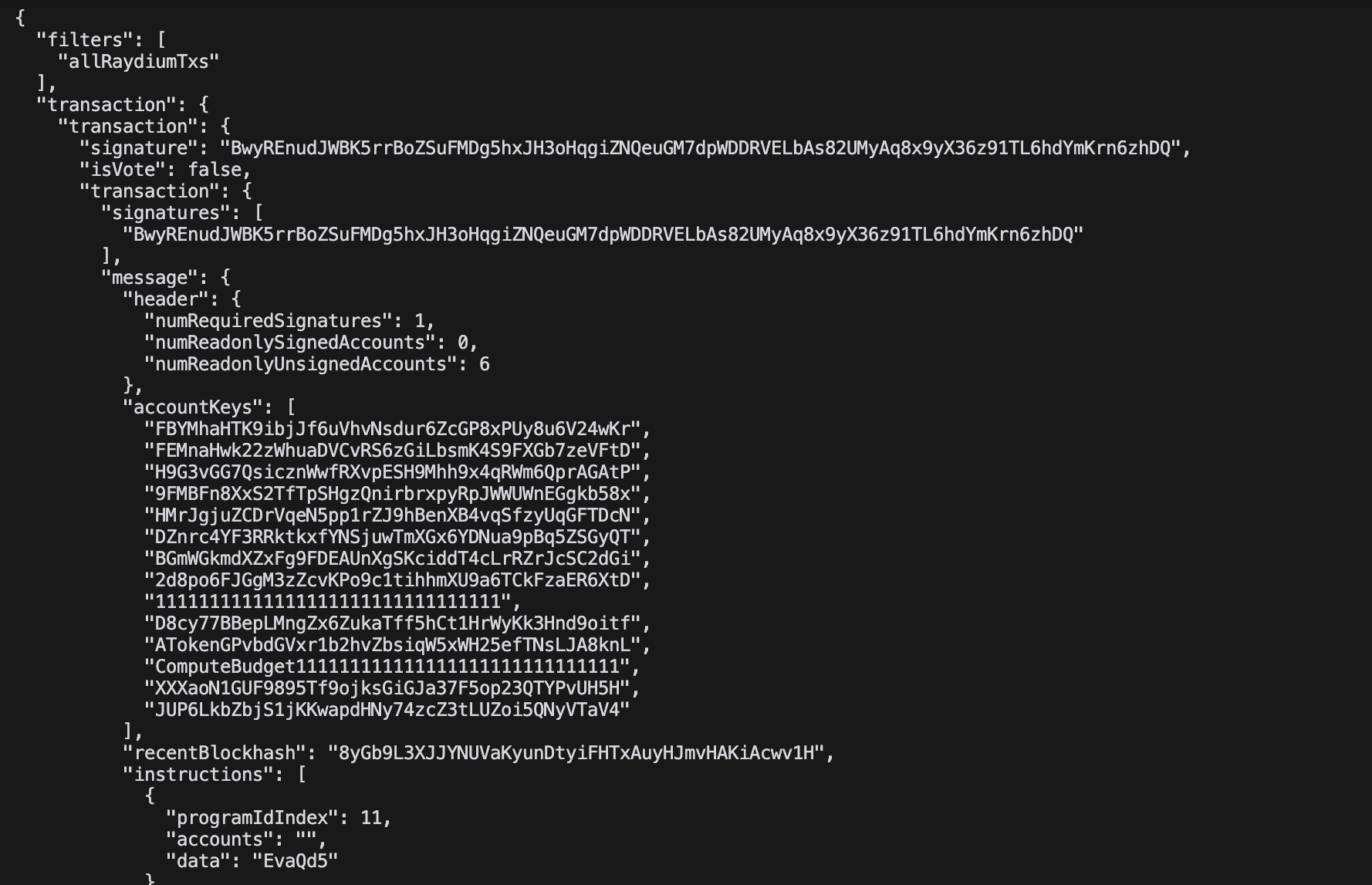
This example streams all Raydium transactions live in JSON format:
```typescript theme={"system"}
import Client, { CommitmentLevel, SubscribeRequest } from "@triton-one/yellowstone-grpc";
import * as bs58 from 'bs58';
const processBuffers = (obj: any): any =>
!obj ? obj :
Buffer.isBuffer(obj) || obj instanceof Uint8Array ? bs58.encode(obj) :
Array.isArray(obj) ? obj.map(processBuffers) :
typeof obj === 'object' ? Object.fromEntries(Object.entries(obj).map(([k, v]) => [k, processBuffers(v)])) :
obj;
const main = async () => {
const client = new Client("grpc_url",
"x_token",
{ "grpc.max_receive_message_length": 64 * 1024 * 1024 });
const stream = await client.subscribe();
const write = (req: SubscribeRequest) => new Promise((resolve, reject) =>
stream.write(req, (err) => err ? reject(err) : resolve()));
stream.on("data", (data) => {
try { console.log(JSON.stringify(processBuffers(data), null, 2)); }
catch (e) { console.error('Error:', e); }
});
await write({
slots: {},
accounts: {},
accountsDataSlice: [],
transactions: {
allRaydiumTxs: {
accountInclude: ["675kPX9MHTjS2zt1qfr1NYHuzeLXfQM9H24wFSUt1Mp8"],
accountExclude: [],
accountRequired: [],
}
},
blocks: {},
blocksMeta: {},
entry: {},
commitment: CommitmentLevel.PROCESSED,
});
setInterval(() => write({
ping: { id: 1 },
accounts: {},
accountsDataSlice: [],
transactions: {},
blocks: {},
blocksMeta: {},
entry: {},
slots: {},
}).catch(console.error), 30000);
await new Promise((resolve, reject) => {
stream.on("error", (e) => { console.error("Stream error:", e); reject(e); stream.end(); });
stream.on("end", resolve);
stream.on("close", resolve);
});
};
main().catch(console.error);
```
 ### Node Type
The type of node you choose depends on your requirements. Since we don't impose any rate limits, your node's performance will rely entirely on its specifications.
**For gRPC streaming applications** (primary use case), any node type will perform well.
### Node Type
The type of node you choose depends on your requirements. Since we don't impose any rate limits, your node's performance will rely entirely on its specifications.
**For gRPC streaming applications** (primary use case), any node type will perform well.
 ### Node Location
We offer nodes across multiple regions: in North America (Pittsburgh, Newark, Salt Lake City, Los Angeles, Vancouver); in Europe (Dublin, London, Amsterdam, Frankfurt); and in Asia (Tokyo, Singapore) to ensure the best geographic coverage with the global Solana infrastructure.
For optimal latency, choose a node closest to your server. Your node will be deployed within three hours of payment.
### Node Client
You can customize your node by selecting the client type — either Agave or Jito Labs (fork of Agave with an additional method `simulateBundle`)
### Node Location
We offer nodes across multiple regions: in North America (Pittsburgh, Newark, Salt Lake City, Los Angeles, Vancouver); in Europe (Dublin, London, Amsterdam, Frankfurt); and in Asia (Tokyo, Singapore) to ensure the best geographic coverage with the global Solana infrastructure.
For optimal latency, choose a node closest to your server. Your node will be deployed within three hours of payment.
### Node Client
You can customize your node by selecting the client type — either Agave or Jito Labs (fork of Agave with an additional method `simulateBundle`)
 ### TypeScript Example
This example streams all Raydium transactions live in JSON format:
```typescript theme={"system"}
import Client, { CommitmentLevel, SubscribeRequest } from "@triton-one/yellowstone-grpc";
import * as bs58 from 'bs58';
const processBuffers = (obj: any): any =>
!obj ? obj :
Buffer.isBuffer(obj) || obj instanceof Uint8Array ? bs58.encode(obj) :
Array.isArray(obj) ? obj.map(processBuffers) :
typeof obj === 'object' ? Object.fromEntries(Object.entries(obj).map(([k, v]) => [k, processBuffers(v)])) :
obj;
const main = async () => {
const client = new Client("grpc_url",
"x_token",
{ "grpc.max_receive_message_length": 64 * 1024 * 1024 });
const stream = await client.subscribe();
const write = (req: SubscribeRequest) => new Promise
### TypeScript Example
This example streams all Raydium transactions live in JSON format:
```typescript theme={"system"}
import Client, { CommitmentLevel, SubscribeRequest } from "@triton-one/yellowstone-grpc";
import * as bs58 from 'bs58';
const processBuffers = (obj: any): any =>
!obj ? obj :
Buffer.isBuffer(obj) || obj instanceof Uint8Array ? bs58.encode(obj) :
Array.isArray(obj) ? obj.map(processBuffers) :
typeof obj === 'object' ? Object.fromEntries(Object.entries(obj).map(([k, v]) => [k, processBuffers(v)])) :
obj;
const main = async () => {
const client = new Client("grpc_url",
"x_token",
{ "grpc.max_receive_message_length": 64 * 1024 * 1024 });
const stream = await client.subscribe();
const write = (req: SubscribeRequest) => new Promise